Shadowrocket Download
How to Buy Shadowrocket on the App Store
Available exclusively on the App StoreDownload on the App Store
Shadowrocket is a paid client for Apple platforms, available exclusively on the App Store. Check the storefront and account first, then verify the developer, official icon, and app ID. After purchase, configure the app with your own subscription or server details.
The US storefront reference price is $2.99. Other storefronts display local currency. See the App Store listing for actual pricing, purchase eligibility, and system requirements.
Check your storefront and Apple ID region
The app isn’t available in the mainland China storefront. The apps shown in the App Store depend on the country or region for the Apple ID used with Media & Purchases—not your device’s current location or the region code in a web link. The button on this page opens the US product listing. Being able to view the listing in a browser doesn’t mean your account can purchase it from that storefront.
Before buying, check two things separately: that you’ve found the right app and that your account can purchase it. Verify the app using its ID, developer, and icon. Then check your account region, payment details, and any messages from the App Store. If the listing says the app isn’t available in your region, review your account details. This is not a connection issue, and there’s no need to change network settings in Shadowrocket.
Check your country or region in Settings
- Open Settings, tap the Apple ID account area at the top, then tap Media & Purchases.
- Tap View Account and authenticate as prompted. Then open Country/Region to check your account’s storefront.
- If you need to change your region, use the Change Country or Region option on that page. Review Apple’s requirements and proceed based on your actual account details.
- Return to the App Store, reopen the product link on this page, and check the app, currency, and purchase status shown.
Whether you can change regions depends on factors such as account balance, active subscriptions, Family Sharing, and payment details. Follow the prompts shown by Apple at the time. These are Apple’s official settings steps; they don’t guarantee that every account can change regions immediately. Menu names may vary by system version. Look for the account and Media & Purchases settings rather than relying on the device language shown on the main Settings screen.
If your region is eligible but the app still doesn’t appear in search, check Content & Privacy Restrictions and age ratings in Screen Time, as well as any pending payments on your account. Opening the product page directly can help avoid similarly named search results, but it won’t bypass account or device purchase requirements. Read the full App Store message before deciding what to do next; it’s more useful for finding the cause than repeatedly tapping Buy.
Verify the official Shadowrocket listing
Use the name to find the app, then verify it by checking the developer, official icon, and app ID. Screenshots can help you recognize the interface, but they don’t replace checking the product listing.
App ID 932747118
Shadowrocket is sometimes referred to by a Chinese nickname, but that isn’t a separate product name. Search results may include similar names or icons, so a keyword alone isn’t enough to verify the app. Before buying, stay on the product page and check all three details below. If any of them don’t match, stop and verify the listing.
- Developer: Find the developer or seller information and confirm the name is
Shadow Launch Technology Limited. Don’t rely on promotional text next to the search result instead of this field. - Official icon: Compare it with the official icon shown on this page: a blue-purple outlined rocket on a white background. The icon is only one part of the check; similar colors or shapes alone don’t confirm the app’s identity.
- App ID: Confirm that the product link includes
id932747118. This identifies the product page and is distinct from its displayed currency, language, or screenshot text.
After checking all three, review the current price, compatibility, and purchase button. Accounts that have already purchased the app may see a redownload icon; other accounts will see the local price. The button reflects the current storefront account’s purchase history, so it alone can’t confirm that you’re viewing the right product.
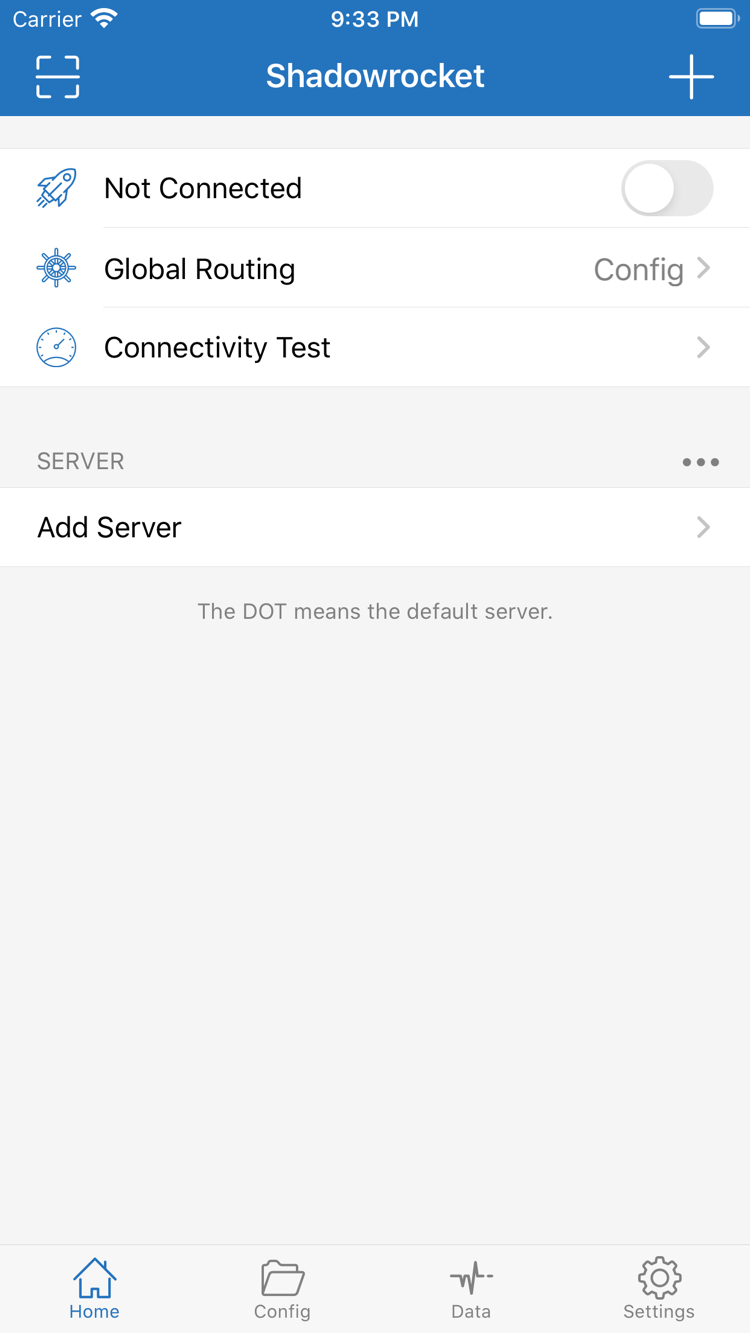
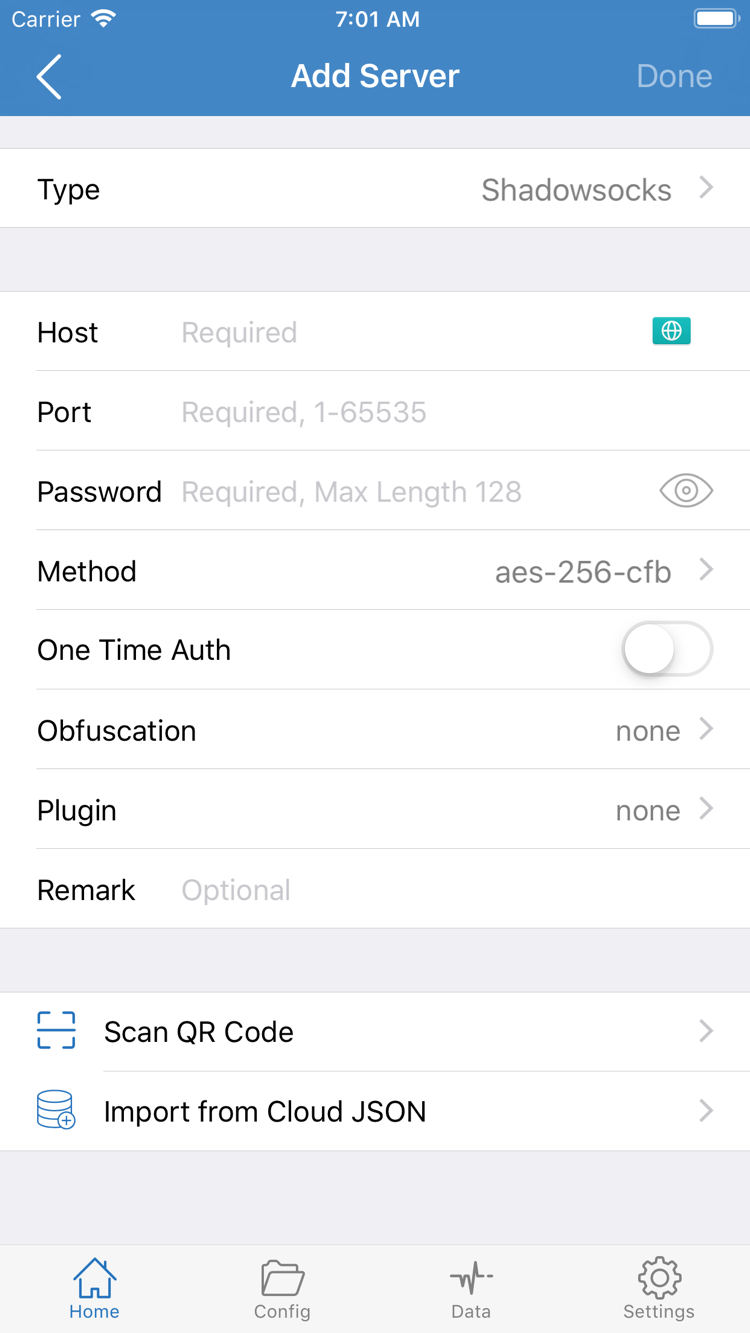
The two images alongside this text are official App Store screenshots. Home shows Not Connected, Global Routing, Connectivity Test, and the SERVER section. Add Server shows the server fields. Screenshots reflect the interface at the time they were submitted, and layouts may change. Don’t use a button’s position, the server list, or the initial connection status as your only way to verify the app.
Installing the app doesn’t mean you have a usable server. The connection status on Home is separate from the purchase status, and Add Server requires details you already have. This page covers App Store access and verifying the app. For field explanations, import steps, and connection checks, see the user guide.
Install and open Shadowrocket on iPhone
On your iPhone, tap the main App Store button on this page, verify the three details and current price, then follow the App Store prompts to purchase and download. See the App Store listing for system requirements. Read the full Compatibility section instead of relying on a minimum version number quoted in another article. If the App Store says your device isn’t compatible, check your installed system version against the listing’s requirements.
- Make sure the App Store is signed in with the Apple ID you want to keep the purchase on, then authenticate and confirm payment.
- Wait for the download to finish. Open Shadowrocket using the App Store’s Open button or from your Home Screen, then get familiar with Home and Add Server.
- Use Add Server or an appropriate import option to add your existing subscription or server details. Check that the saved entry is complete.
- When you first connect, read the system prompt to add a VPN configuration. Confirm that you initiated the action, then authenticate as required by the system.
VPN configuration authorization lets the system allow the client to handle the relevant network traffic. It isn’t another purchase confirmation and won’t fill in server details for you. If you cancel for now, check your details first, then try connecting again in the app. After granting authorization, you still need to select an available server and check that Global Routing is set as intended. System authorization doesn’t mean the connection is ready to use.
For your first check, follow a clear order: verify your existing server details, check Global Routing, then connect and test access. Config, Proxy, and Direct are different modes in the interface; you don’t need to change them before installing the app. For connection issues, follow the steps in the user guide. App Store purchase issues should be handled through the storefront and account settings.
iPad and other compatible devices
A single purchase with the same Apple ID lets you install Shadowrocket on eligible iPhone and iPad devices. See the App Store listing for purchase eligibility and system requirements. On iPad, first make sure Media & Purchases is signed in with the original purchasing account, then find the app on its product page or in your purchase history. Using the same cloud account on both devices doesn’t necessarily mean they use the same account for Media & Purchases, so check this if a price is shown.
The larger iPad screen may change list widths, portrait or landscape layouts, and the location of some controls. Use the actual interface labels—Home, Config, Settings, and Add Server—as your guide, rather than treating screenshot coordinates as fixed steps. After adding your details, check the selected server, Global Routing, and connection status before testing.
Purchase eligibility and configuration details are separate. Being able to redownload the app on iPad doesn’t mean your iPhone’s subscriptions, server details, or rule files are already on the iPad. Check what’s actually available on the new device and import your own saved details. You may also need to approve the system VPN configuration separately on this device before connecting for the first time.
Mac, Apple TV, and Apple Vision
The Compatibility section of the same App Store listing also includes Mac, Apple TV, and Apple Vision. Check the listing in the App Store on your target device. Refer to the App Store for system requirements, device eligibility, and whether Universal Purchase applies. Interactions and available features may vary by device. These step-by-step instructions focus on iPhone and iPad; don’t assume every control is in the same place on other devices.
Restore Shadowrocket on a new device or after reinstalling
Shadowrocket purchases are linked to the Apple ID used to buy the app. After getting a new device or reinstalling, sign in to that account and redownload Shadowrocket from the App Store. You usually won’t need to pay again. Check your account and purchase history before restoring. If the product page still shows a price, don’t buy again right away; first confirm you’re signed in to the original Media & Purchases account and that the app appears in your purchase history.
- Open the App Store, tap the account icon in the top-right corner, and check which Apple ID is being used for purchases.
- Open Purchased. On some system versions, this may be under Apps or another purchase list; follow the menus shown on your device.
- Search for Shadowrocket, verify the developer and app ID, then tap the redownload icon and wait for the app to be restored.
- Open the app and check whether your local details have been transferred. If needed, import your own subscription, server details, or configuration backup.
Redownloading the app and restoring its internal data are separate steps. Purchase history confirms that the account is eligible to download the client, but it doesn’t restore a subscription URL, server password, or configuration backup. Before switching devices, make sure you can still access these details and keep any necessary configuration safe. Use links or files containing authentication details only in a private, controlled environment. Avoid including their full contents in public screenshots when troubleshooting.
If the app isn’t in your purchased list, check whether you’re signed in to a different purchasing account, the purchase is hidden, the original storefront region has changed, or the purchase was completed. If your account history doesn’t match the charge, use the account and purchase support options provided by the App Store. Don’t test your account status by repeatedly purchasing the app.
To check whether Family Sharing applies, review the relevant information on the current product page along with your family group and account settings. One family member’s ability to download the app doesn’t mean it’s available to every account. App updates also come through the App Store; automatic updates are controlled by system settings. After updating, check your existing configuration and connection status. Reinstalling isn’t a universal fix for configuration issues.
One-time client purchase
Network service plan
A one-time client purchase is not a network service plan. Buying Shadowrocket gives you access to the client. You provide your own subscription or server details for connecting. This site does not provide, sell, or recommend servers or subscriptions.
What the one-time purchase covers
The US storefront reference price for Shadowrocket is $2.99, paid once—not a monthly fee for the client. Storefronts use local currencies, and the actual amount is shown on the App Store purchase confirmation screen. The US price is provided to help identify the US listing, not as a promise of what you’ll pay elsewhere. Check the price and currency shown in your account’s storefront before confirming payment.
The client fee and the cost of any network service you already use cover different things. The former is the app purchase; the latter depends on your own service arrangements. Buying the app doesn’t generate a server address or configure a subscription for you. Even after installing the app and approving the system prompt, you’ll need to enter the correct details and test the connection to see whether your existing service works.
To check whether the app lists in-app purchases, see the relevant section of the current App Store product page. Use what’s shown there at the time of purchase, not an older article or search snippet. Also check the listing and your account history for purchase eligibility across devices, Family Sharing, and redownload access.
Follow this order for your first setup: verify the app, confirm the price, then add your details. This helps separate App Store issues from connection issues: for payment or download errors, check the App Store and your account; if the app opens but won’t connect, check your existing server, Global Routing, DNS, and rules. For subscription updates, managing multiple servers, and backing up your details, see the official server management manual.
Common questions about downloading and restoring
First identify the issue from the App Store message, then check your account, device, or configuration. The answers below correspond to the verification steps on this page.